> ## Documentation Index
> Fetch the complete documentation index at: https://apidocs.mossx.ai/llms.txt
> Use this file to discover all available pages before exploring further.
# NodeJS 安装
本页用于准备 CLI 所需的 Node.js 环境,并验证 `node`、`npm` 命令可用。本项目中的 Claude Code CLI、Codex CLI 和 Gemini CLI 教程通过 npm 安装,因此需要 Node.js;如果只使用 Codex 桌面版,可以跳过 Node.js 安装。
* Windows 打开 PowerShell:按下 `Win+R`,输入 `powershell`,然后按回车
* macOS 打开“终端”:按下 `Command+Space` 打开聚焦搜索,输入“终端”或 `Terminal`,然后按回车
#### **第一步:安装 Node.js**
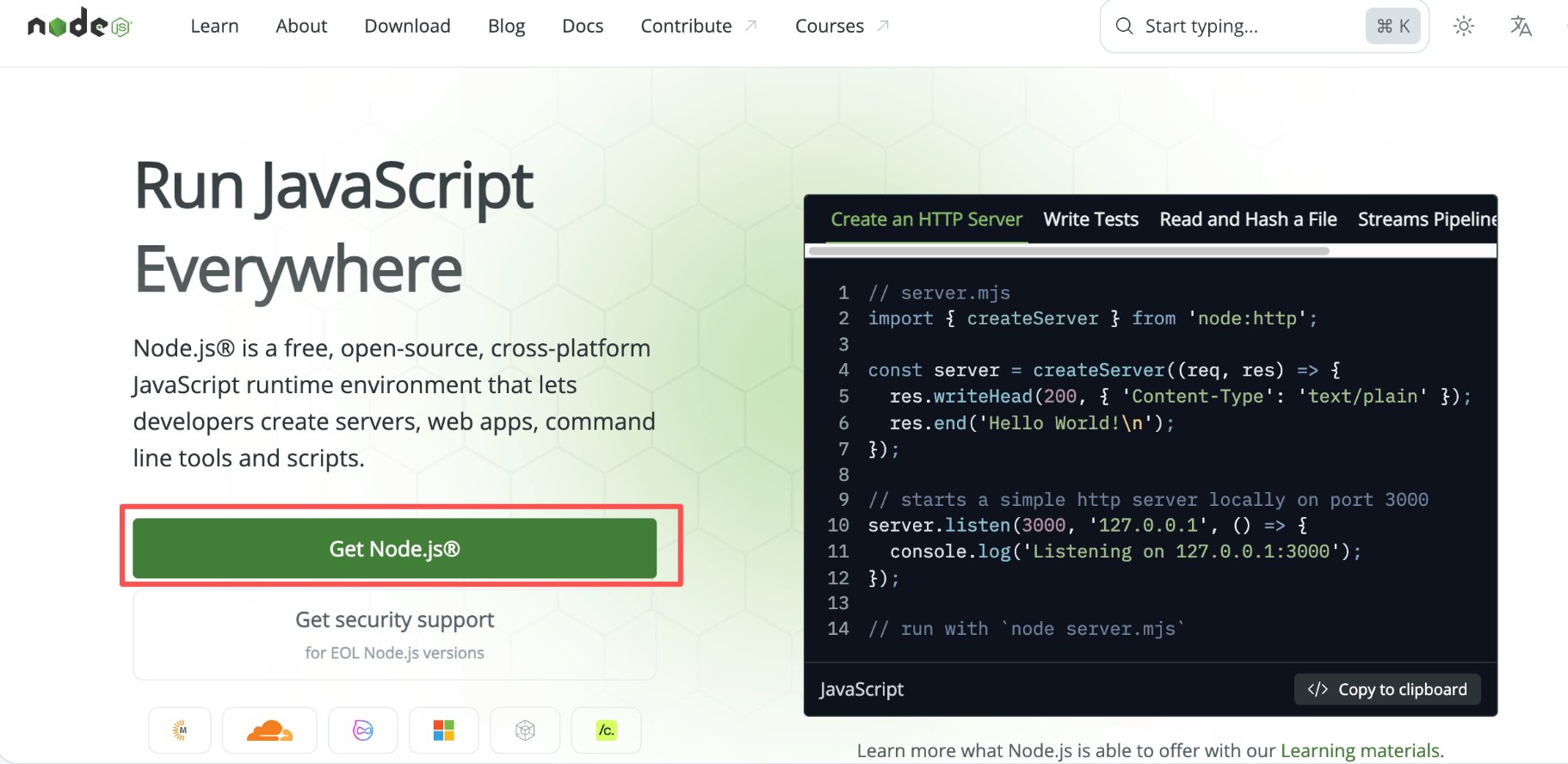
* 打开浏览器访问 [Node.js 官网](https://nodejs.org/)
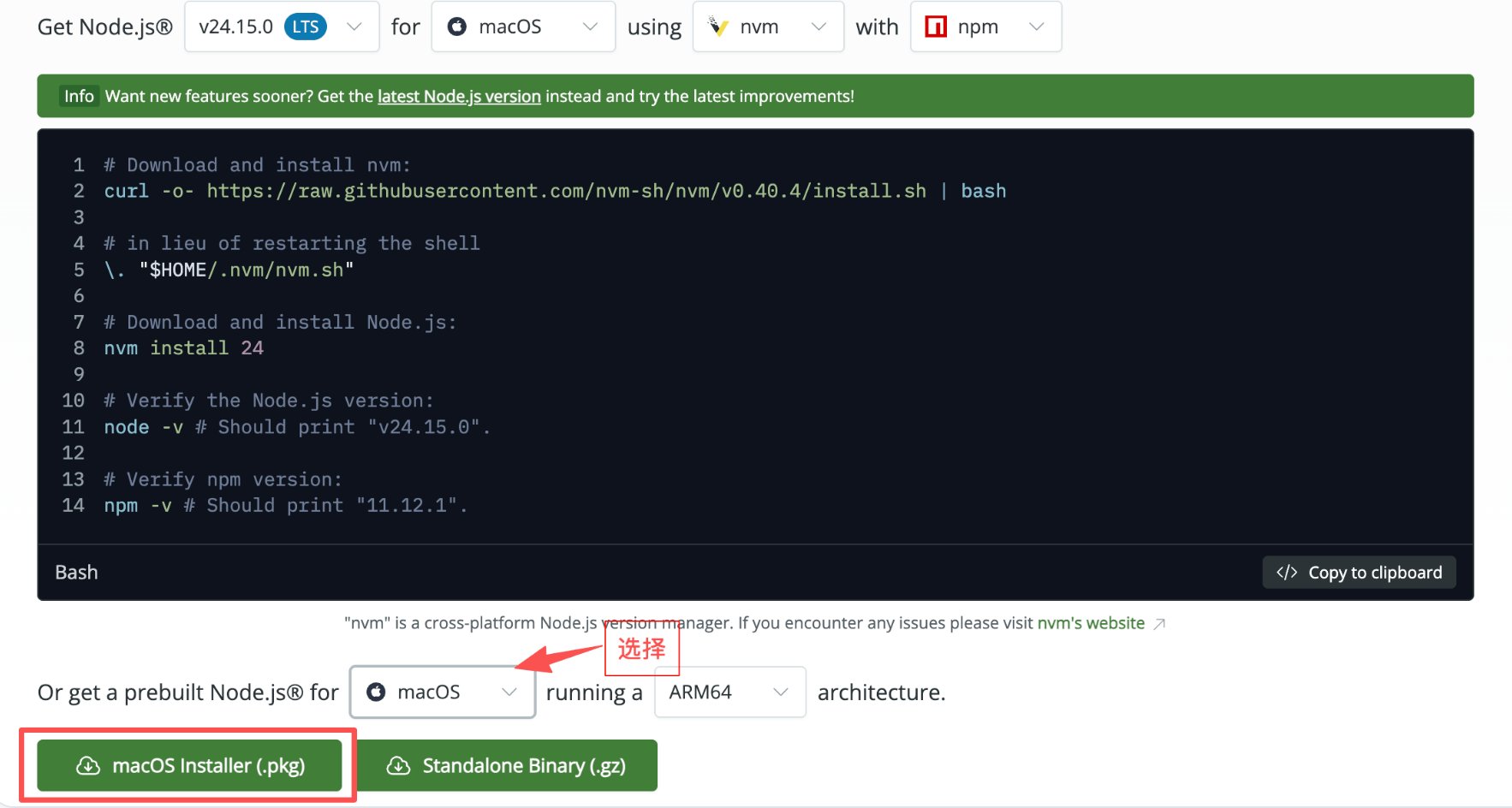
* 下载与当前系统匹配的 LTS 版本:Windows 选择 `.msi`,macOS 选择 `.pkg`,Linux 按官网提供的对应发行版方式安装
* 按照安装向导或官网命令完成安装;不确定时保持默认设置即可
请优先安装当前 LTS 版本。版本最低要求如下:
* Claude Code:Node.js `22` 或更高版本
* Gemini CLI:Node.js `20` 或更高版本
* Codex CLI:Node.js `16` 或更高版本;为避免频繁切换版本,仍建议直接安装当前 LTS
下面的安装截图以 Windows 为例:
 #### **验证安装**
安装完成后,在终端执行:
```text theme={null}
node --version
```
如果两个命令都能显示版本号,并且 Node.js 版本满足上方要求,说明环境已准备完成。若版本过低,请回到官网下载并安装新版 LTS。
***
#### **第二步:安装 Git Bash(仅 Windows,可选)**
Git Bash 不是运行这些 CLI 的必需组件。如果你准备使用 PowerShell,可以跳过本节;如果更习惯 Bash 命令,再按下面步骤安装。
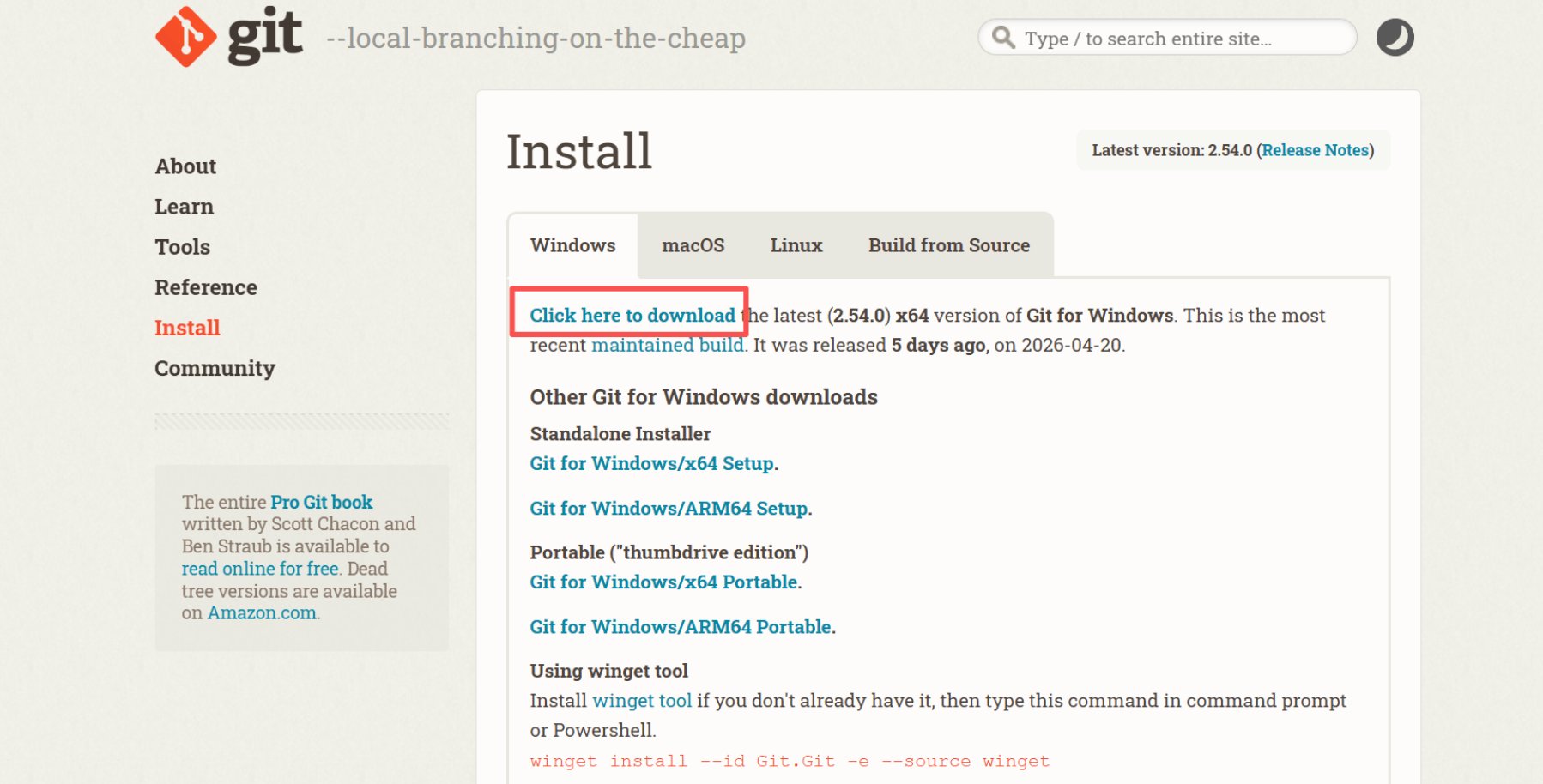
* 访问 [Git for Windows 下载页](https://git-scm.com/downloads/win)
* 点击 "Download for Windows" 下载安装包
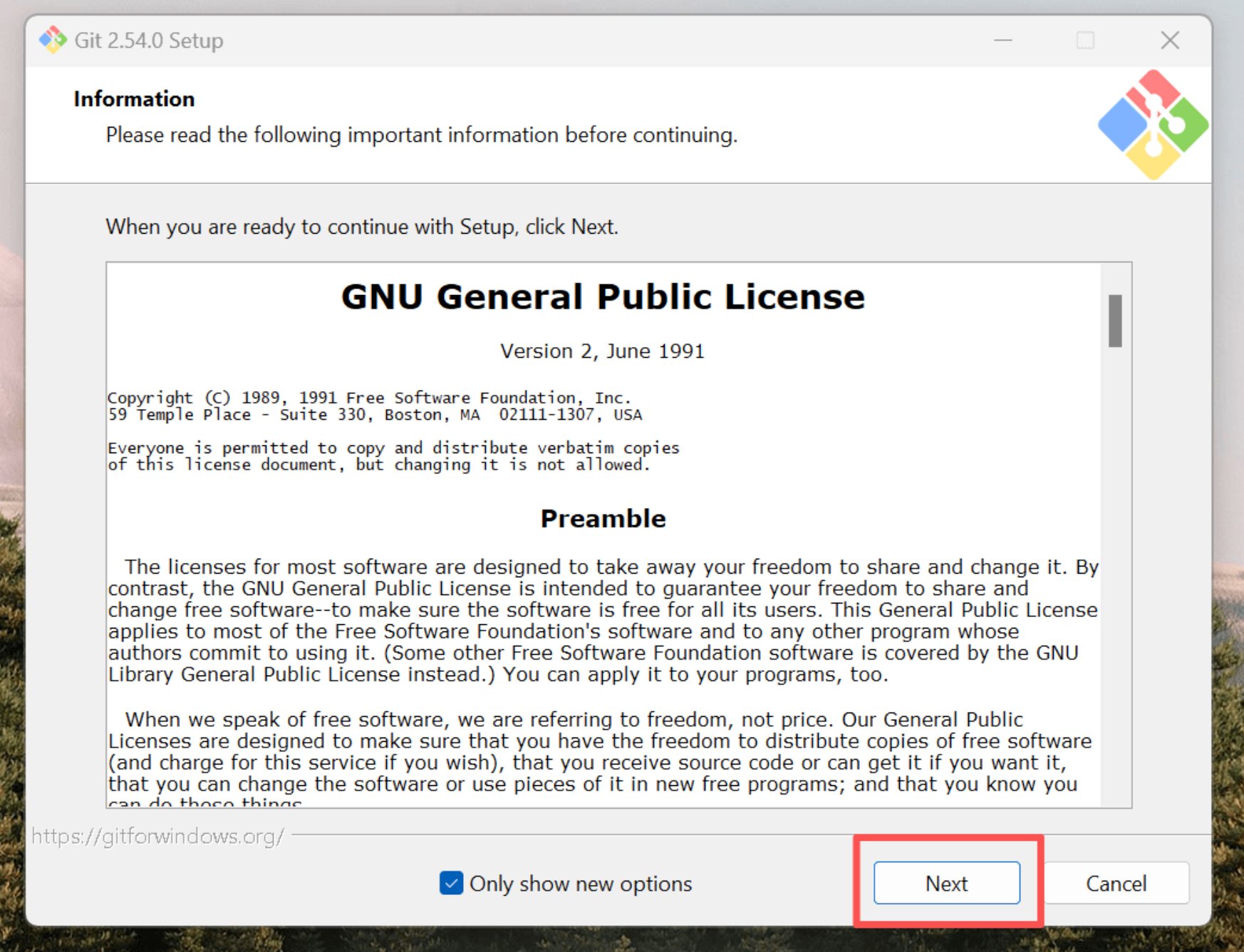
* 运行下载的 .exe 安装文件
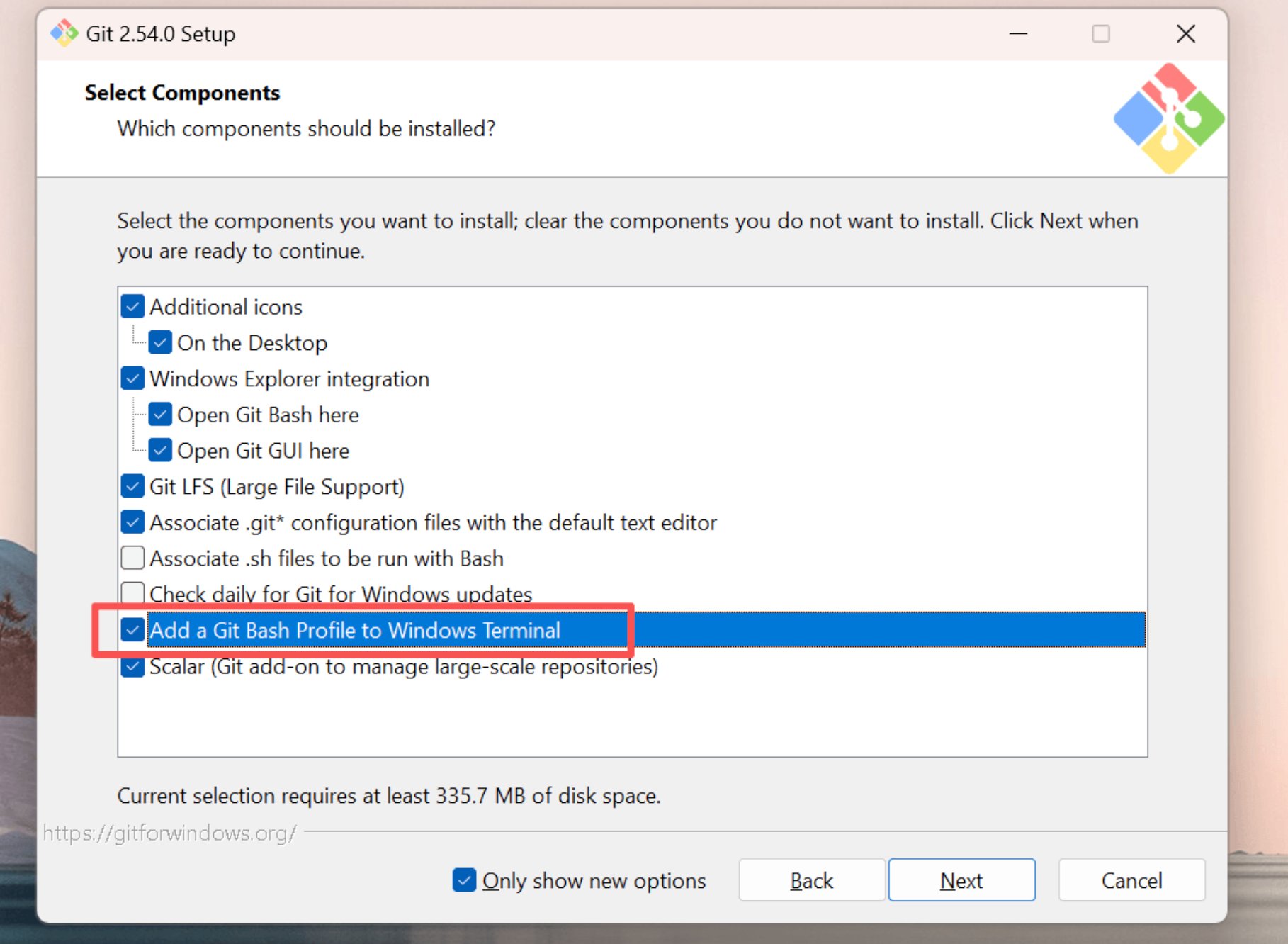
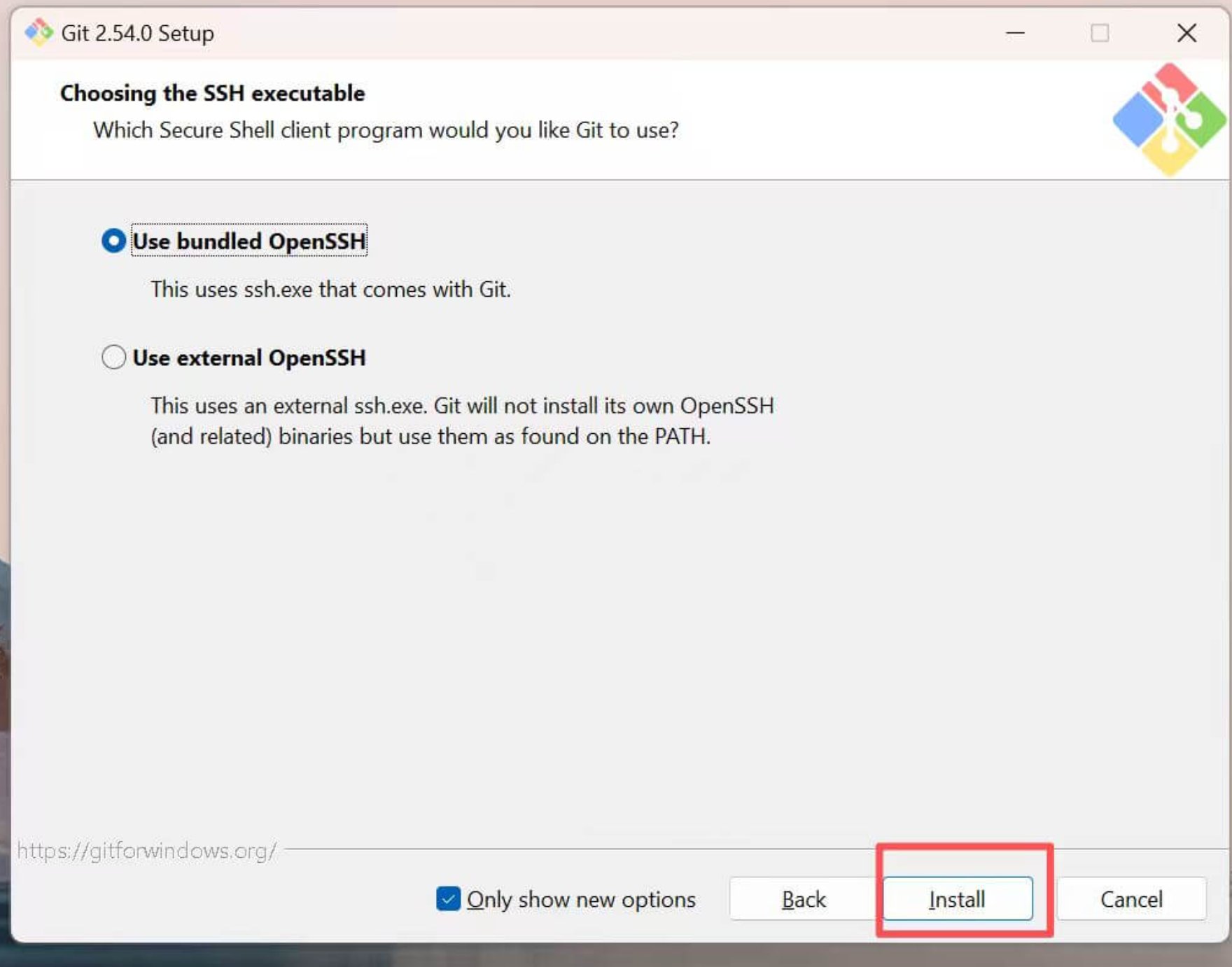
* 在安装过程中保持默认设置,直接点击 "Next" 完成安装
下面是 Windows 安装示例:
#### **验证安装**
安装完成后,在终端执行:
```text theme={null}
node --version
```
如果两个命令都能显示版本号,并且 Node.js 版本满足上方要求,说明环境已准备完成。若版本过低,请回到官网下载并安装新版 LTS。
***
#### **第二步:安装 Git Bash(仅 Windows,可选)**
Git Bash 不是运行这些 CLI 的必需组件。如果你准备使用 PowerShell,可以跳过本节;如果更习惯 Bash 命令,再按下面步骤安装。
* 访问 [Git for Windows 下载页](https://git-scm.com/downloads/win)
* 点击 "Download for Windows" 下载安装包
* 运行下载的 .exe 安装文件
* 在安装过程中保持默认设置,直接点击 "Next" 完成安装
下面是 Windows 安装示例:
 #### **验证安装**
安装完成后,在终端执行:
```text theme={null}
git --version
```
如果显示版本号,就成功了
#### **验证安装**
安装完成后,在终端执行:
```text theme={null}
git --version
```
如果显示版本号,就成功了