> ## Documentation Index
> Fetch the complete documentation index at: https://apidocs.mossx.ai/llms.txt
> Use this file to discover all available pages before exploring further.
# Claude Code 配置
### **一. 安装 Claude Code**
#### **1.window安装 Claude Code**
打开 PowerShell:按下 `Win+R`,输入 `powershell`,然后按回车。
在 PowerShell 中执行:
```text theme={null}
npm install -g @anthropic-ai/claude-code
```
这个命令会从 npm 官方仓库下载并安装最新版本的 Codex。
验证安装
```text theme={null}
claude --version
```
如果可以正常输出版本号,说明 Codex 已安装成功。
#### **2.Mac 安装 Claude Code**
打开“终端”:按下 `Command+Space` 打开聚焦搜索,输入“终端”或 `Terminal`,然后按回车。
在终端中执行:
```text theme={null}
npm install -g @anthropic-ai/claude-code
```
验证安装
```text theme={null}
claude --version
```
如果可以正常输出版本号,说明 Codex 已安装成功。
#### **3.Linux 安装 Claude Code**
打开终端,在终端中执行:
```text theme={null}
npm install -g @anthropic-ai/claude-code
```
验证安装
```text theme={null}
claude --version
```
如果可以正常输出版本号,说明 Codex 已安装成功。
***
### **第二步:配置 CC GUI 中转站信息**
访问密钥管理页面:[https://fufei.mossx.ai/keys](https://fufei.mossx.ai/keys)
点击 密钥右侧的 使用教程:
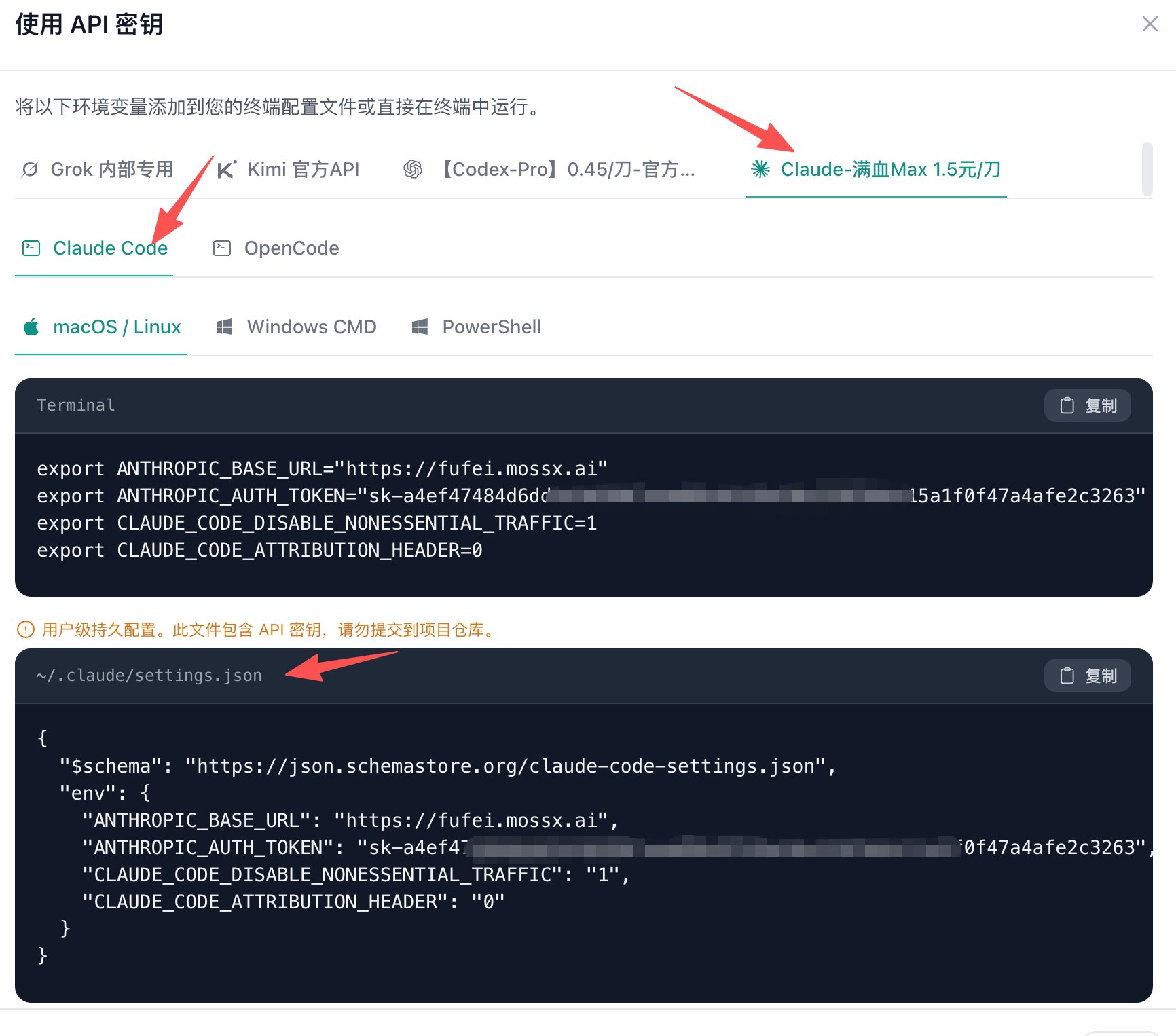
 根据这里的教程,选择对应的平台 会有对应的教程
完全更换 下面文件的内容,即可配置完成(其他配置也根据教程来)
* \~/.claude/settings.json
根据这里的教程,选择对应的平台 会有对应的教程
完全更换 下面文件的内容,即可配置完成(其他配置也根据教程来)
* \~/.claude/settings.json
 ***
#### 使用Claude Code CLI
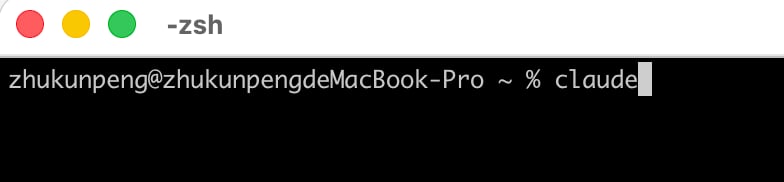
上面配置完成之后,直接终端启动claude,即可进行对话
***
#### 使用Claude Code CLI
上面配置完成之后,直接终端启动claude,即可进行对话
 并且可以访问:[https://fufei.mossx.ai/usage](https://fufei.mossx.ai/usage)
查看自己刚刚请求的扣费情况
并且可以访问:[https://fufei.mossx.ai/usage](https://fufei.mossx.ai/usage)
查看自己刚刚请求的扣费情况